 All guides
All guides
All guides
The dashboard's front page — who's checked in right now, updating on its own, with everything staff need to manage the room from one screen.
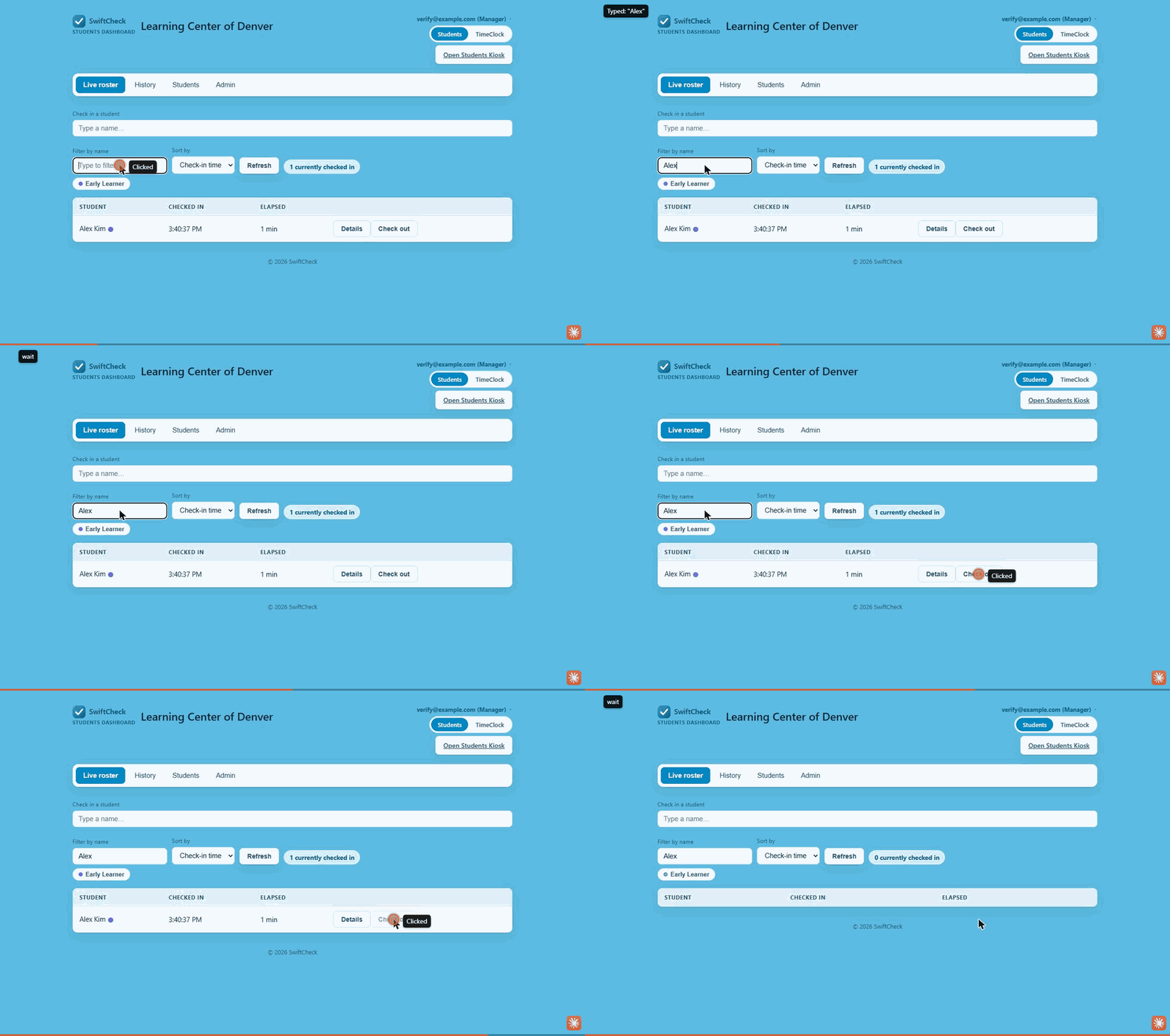
Live Roster lists every student currently checked in, with their check-in time and how long they've been here. It refreshes on its own roughly every 20 seconds — no need to keep hitting reload.
Type a name in the Check in a student box at the top to check someone in right from the dashboard — handy at a busy front desk, or if the kiosk's momentarily tied up.
Every row has its own Check out button — one click, no need to send the student back to the kiosk.
Use Filter by name to jump to one student, Sort by to order the list by check-in time or name, or click a colored tag chip above the table to show only students carrying that tag.
If a student has a time limit set and they've been checked in longer than that, their row gets a soft red tint — hover it to see "Past Time Limit." A quiet flag, not an alarm. See the recommended time limit guide for how to set one up.
No — Live Roster updates on its own about every 20 seconds. A manual Refresh button is there too, if you want it sooner.
Yes — Live Roster shows everyone currently checked in, no matter how they checked in. Any staff member can check them out from either place.
The colored dots are that student's tags — hover one to see its name. A 🎁 or 🎂 badge means their birthday is coming up or is today. See the Tags guide and Birthday reminders guide for more.
No — once someone checks out they drop off the list. Past visits live in History, with the full exporting attendance reports guide for any date range.
Live Roster is the first thing you'll see when you open your dashboard.
Go to my dashboard