 All guides
All guides
All guides
There are three ways for the kiosk to find someone: by name or number, by number only, or with a badge scan. Here's how each one works, and how to turn it on.
Every kiosk starts out this way, with nothing to turn on. Type part of a name or a student number, whichever's faster, and pick the right result from the list.
Every student already has a unique student number. Number-only mode is for centers that would rather students not browse names at the kiosk at all — typing a name won't find anyone, but a number always will.
On the Admin tab (Manager-only), find the Kiosk Check-In card.
Flip the toggle and click Save. This applies instantly, center-wide — no need to touch any device.
The search box's placeholder changes to "Scan or type your number…" as a reminder. Nothing about check-in or check-out itself changes — students still tap a result and confirm, exactly as before. Only how they get found is different.
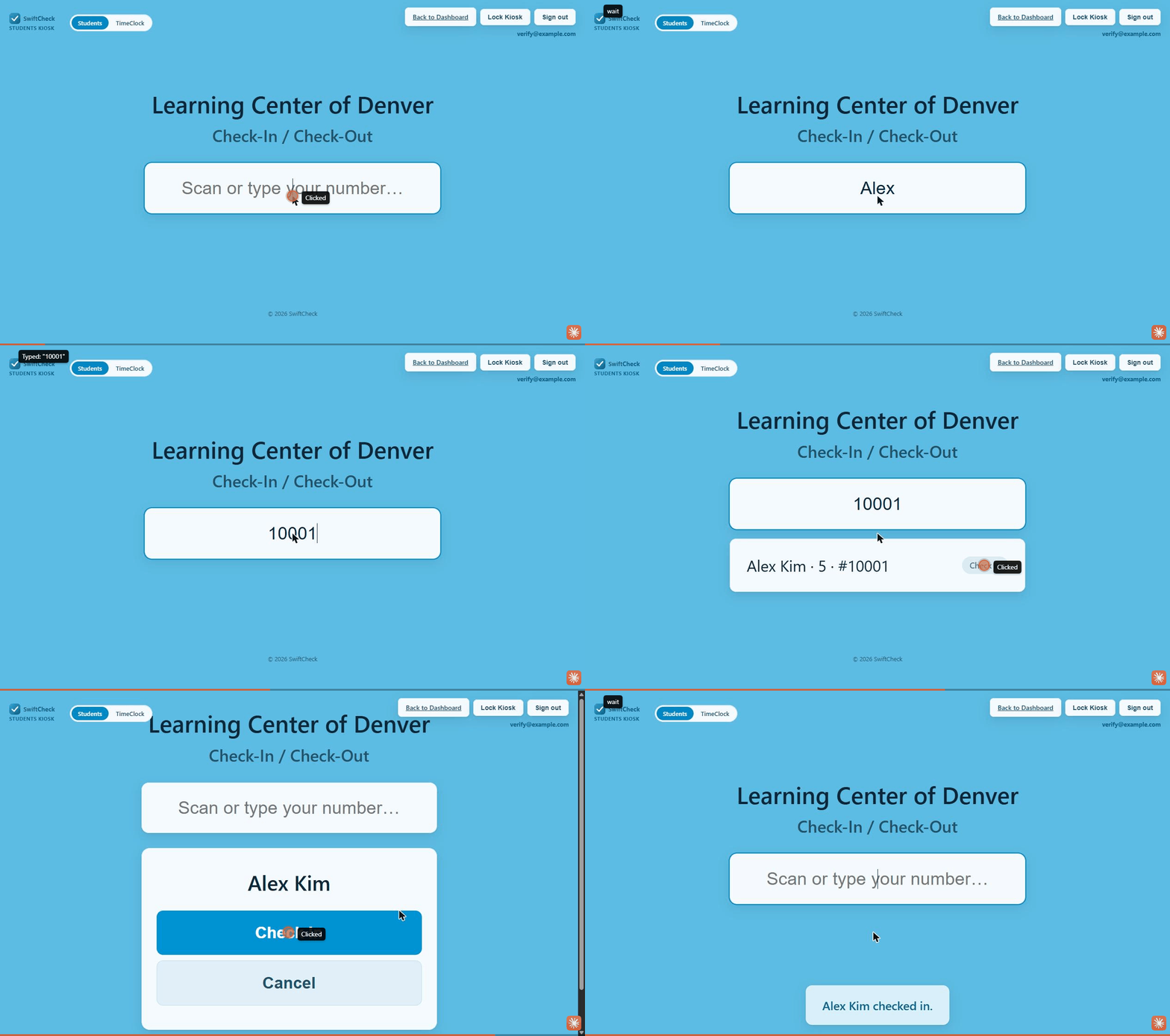
A separate Badge scanning switch, right below Number only on the same Kiosk Check-In card, replaces the search box entirely with a scan-only screen — no typing at all. Pick whichever scan method matches your setup, then Save. By default, a successful scan finds the student and shows a confirm screen — one tap finishes the check-in/out, the same as picking a name from search would.
Students tap a button, then hold their badge up to the device's camera — no extra hardware needed. SwiftCheck automatically uses the front-facing camera, since a kiosk usually faces the person using it.
No button — the kiosk shows a plain "Scan your badge" card, and any USB or Bluetooth barcode scanner does the rest. A scanner works like a keyboard, typing the scanned number straight into the page.
Both read the exact same barcode, so a student's card works with either — switch between the two any time without reprinting anything.
Find the Student ID Cards card on the same Admin tab. It prints in two ways — everyone at once, or just the people who actually need a card right now.
Click Bulk Print. Every active student with an assigned number is included automatically — check Include inactive students if you want former students' cards too. Pick a label format and print. This is the fastest way to badge a whole roster the first time you turn on badge scan.
Click Print instead to open a filterable checklist of your students. Check just the people you need — a new enrollment, someone whose card was lost or damaged, whoever joined this week — pick a label format, and only those cards print. Nobody else's existing badge is touched.
Every card carries the same thing no matter which format or printing method you use: the student's name and their number as a Code128 barcode. This is the same barcode scanning reads, so a card printed either way works identically at the kiosk.
Badge scan replaces the search box entirely, so number-only mode doesn't come into play while it's on. Turn badge scan off and number-only (if it's set) takes over again.
Yes — Live Roster's own check-in box uses the same search, so it's locked to numbers too whenever this is turned on. Live Roster's Filter by name box is unaffected; that's a separate, local filter over students already loaded.
Every student gets one automatically — you don't have to assign it. Find it any time from the Students tab, or on a printed ID card.
Nothing to deactivate or reissue — their student number never changes. Click Print on Student ID Cards, check just that one student, and print a fresh card without touching anyone else's.
No — number-only mode works with typed numbers alone, no scanner required. Badge scan's Camera option needs no extra hardware either; only its Barcode scanner option needs a USB or Bluetooth scanner, and any model that types like a keyboard works with zero configuration.
Yes, any time — flip the toggle back and save. Nothing about your students or their numbers changes either way.
Kiosk Search is included at no extra cost, on every SwiftCheck plan.
Go to my dashboard